Appearance
Projects
A project groups related targets and their scans so your work stays organized. It's the first thing you create and the screen you land on when you open the console.
The Projects screen
The Projects screen lists every project you've created, newest first. Each project card shows its name, an optional description, and the date it was created. Click a card to open the project and start working in it.
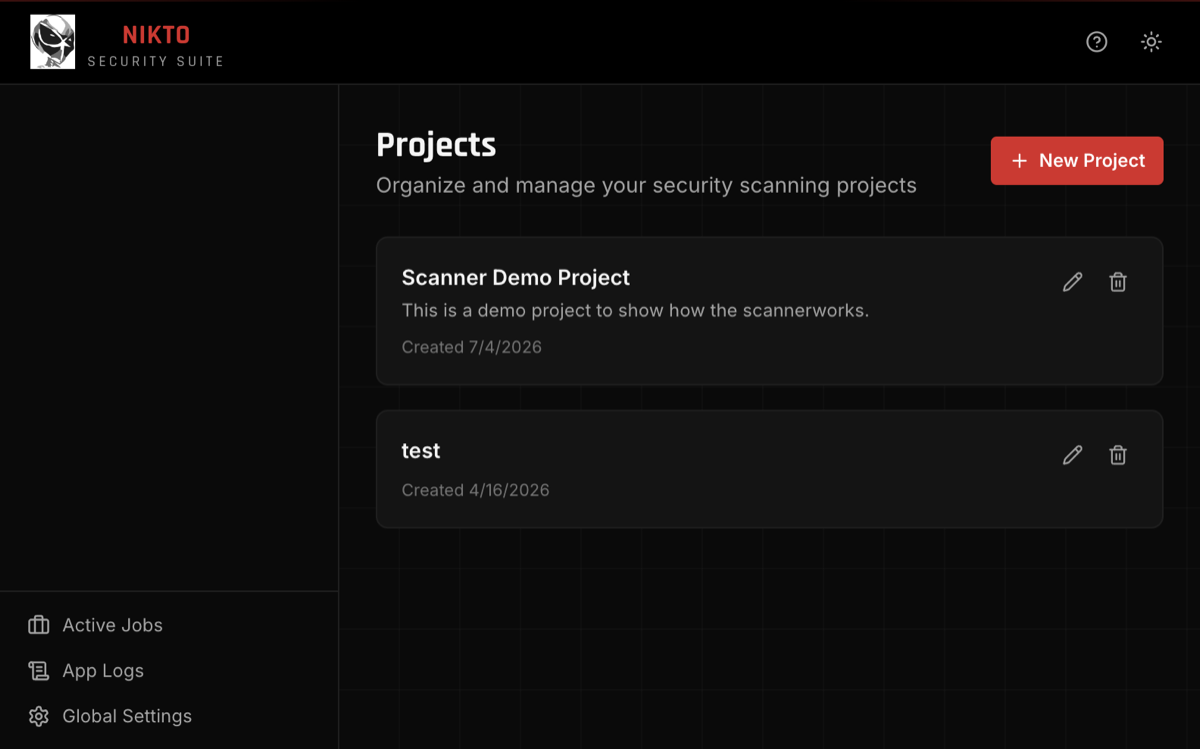
If you have not created a project yet, the empty state shows No Projects Yet and a button to create the first one.
Create a project
- Click New Project (top right), or Create Project on the empty state.
- Enter a Name — this is required (for example,
Production Site Scan). - Optionally add a Description to note the project's purpose.
- Click Create Project.
The new project appears at the top of the list.
Open a project
Click anywhere on a project card to open it. Once open:
- The left sidebar shows the project's sections: Hosts, Tools (expand for Nikto, Crawl, LFIC, Bustah), Scans, Recommendations, Findings, Report, Logs, and Settings. Recommendations, Findings, and Report show open-item counters.
- The address bar updates. Bookmark or copy it to return to this project (or to a host, tool page, or list inside it). See Addresses and Back.
- The sidebar header shows the project name with an All Projects link to the Projects list. The Nikto logo and the arrow beside it do the same. Browser Back returns to the previous screen, which is often that list.
A bookmark or pasted link whose project cannot be loaded shows Could not open project with the id and the reason — not an empty workspace.
Edit a project
On the Projects screen, click the pencil icon on a project card. Update the Name or Description, then click Save Project.
Delete a project
Click the trash icon on a project card. A confirmation dialog appears:
Delete project "<name>"? This will permanently remove all associated data.
Deleting a project permanently removes its hosts, scans, findings, and logs. This cannot be undone.
Next steps
With a project open, add targets and run scans:
- Hosts — import and manage targets (New Scan/Import opens the New Scan wizard). Each host has Target Config (host identity) and Scan Defaults tabs.
- Tools → Nikto / Crawl / Bustah — hosts that tool has already scanned (Hosts / Scans toggle); New Scan opens the shared wizard scoped to that tool. Tools → LFIC is the same host list; New LFIC Scan runs setup and launch on the tool page. Wizards do not open on arrival.
- Scans — all scan types in one list (every tool, every host in this project); click a row for scan detail. New Scan for bulk Nikto, Crawl, and/or Bustah.
- Recommendations — project-wide follow-ups from Nikto and Crawl (every host in this project); Dismiss, Undismiss, per-row Delete, or Delete all. Cloud-listing rows offer Export full file list. See Recommendations.
- Findings — review what scans uncover.
- Settings → Scan Defaults — project-wide defaults for new scans.
- Host LFIC tab — configure and run file-inclusion scans (not in the New Scan wizard).